![Prekure word logo green copy-1.png]](https://knowledge.prekure.com/hs-fs/hubfs/Prekure%20word%20logo%20green%20copy-1.png?height=40&name=Prekure%20word%20logo%20green%20copy-1.png)
Steps to Change Access Permissions:
-
Open Google Drive
- Go to Google Drive and sign in with your account.
-
Locate the File or Folder
- Find the file or folder for which you want to change access permissions.
-
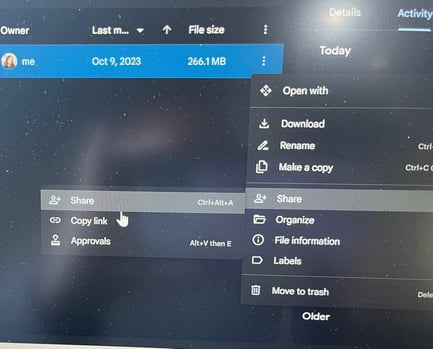
Open Sharing Options
- Right-click the file or folder and select “Share” from the context menu then click “Share” again.
- Under “General Access”, you’ll see the current sharing settings. Your view probably says 'Restricted'
- Click the dropdown menu that appears next to "Restricted' and click on 'Anyone with the link'.
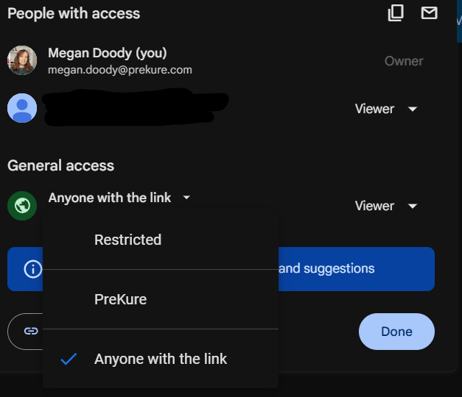
4. Click 'Done'
Once you have done this, you can submit via the submission page in your Assessment section in Teachable. If you have already sent us the link, but we were not able to access it, once you have updated the permissions, let us know and we will be able to view your assessment video.
Thank you!
Set the link permission to Viewer, so your marker can view the recording without changing it. Test the link before submitting.